> ## Documentation Index
> Fetch the complete documentation index at: https://docs.alpacaml.com/llms.txt
> Use this file to discover all available pages before exploring further.
# Using References to Guide Composition
> Guide your image composition with References
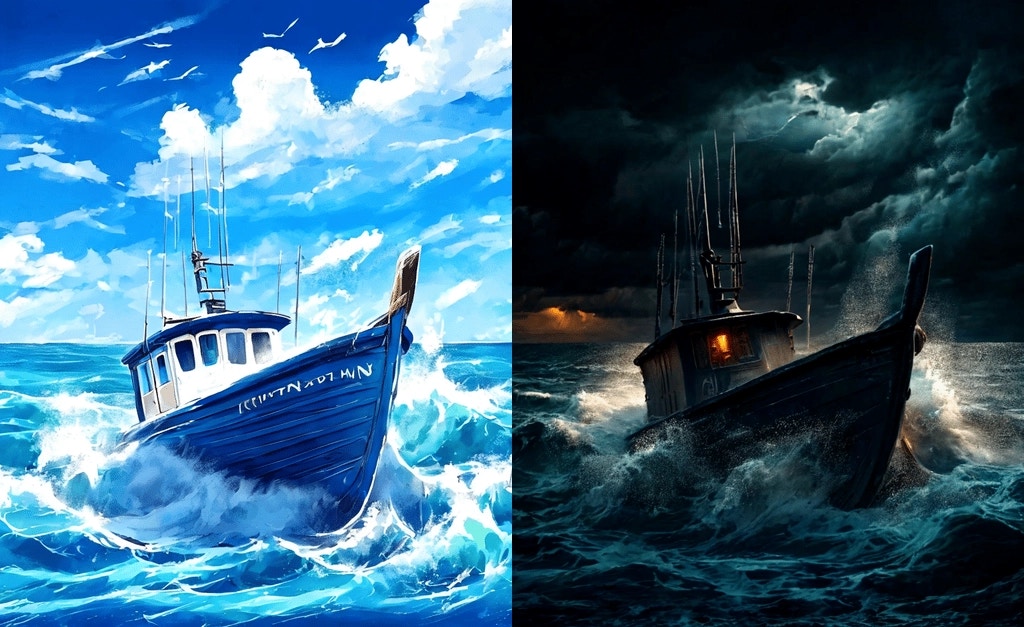 The References feature lets you guide the composition of new images, by leveraging existing images as a
compositional template. You can use references with the Imagine tool to create brand new images with your desired composition,
or with the Transfer tool to maintain your composition at higher transfer strengths.
## Getting Started
***
1. Select Your Reference Image: Begin by choosing an image that contains the
compositional elements you want to use in your new generation. Add this image
to your document in Adobe Photoshop.
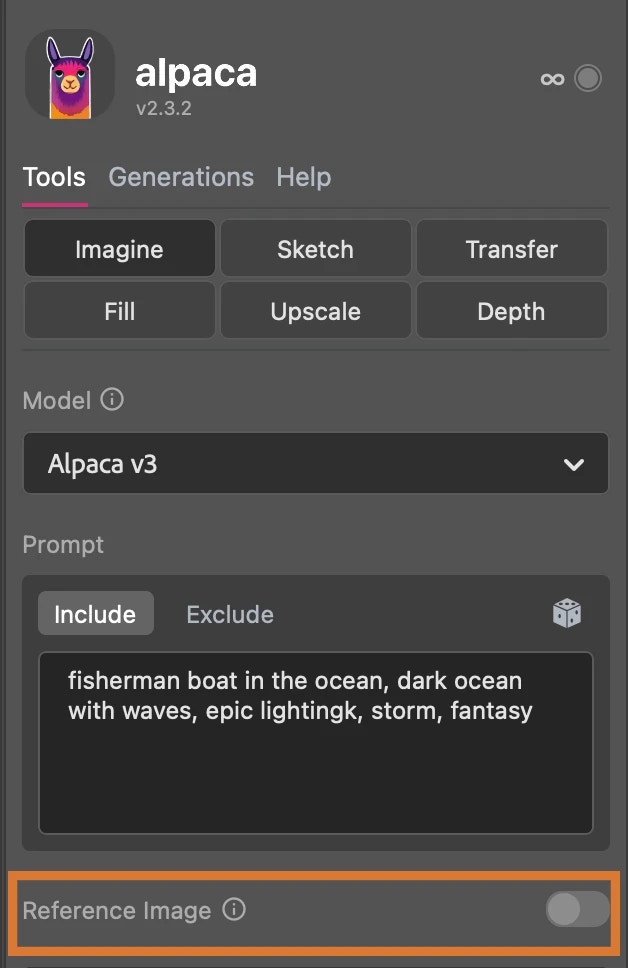
2. Enable References: Navigate to either the Imagine or the Transfer tool
within Alpaca. Look for the 'Reference' toggle and enable it.
The References feature lets you guide the composition of new images, by leveraging existing images as a
compositional template. You can use references with the Imagine tool to create brand new images with your desired composition,
or with the Transfer tool to maintain your composition at higher transfer strengths.
## Getting Started
***
1. Select Your Reference Image: Begin by choosing an image that contains the
compositional elements you want to use in your new generation. Add this image
to your document in Adobe Photoshop.
2. Enable References: Navigate to either the Imagine or the Transfer tool
within Alpaca. Look for the 'Reference' toggle and enable it.
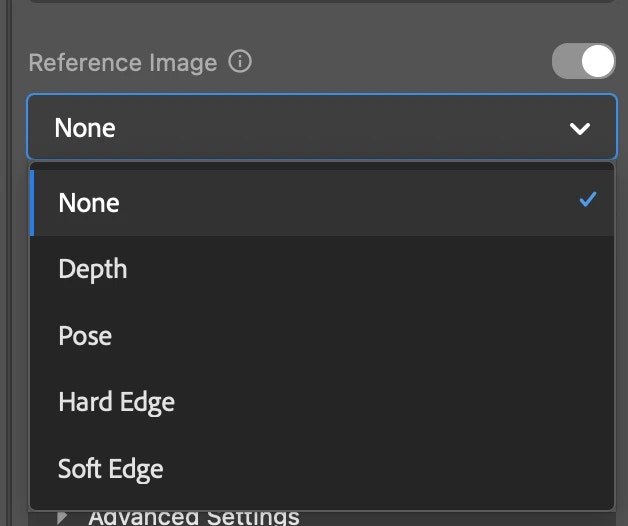
 3. Choose Your Reference Type: Based on the compositional elements you want
to use from your reference image, select the appropriate reference type. Your
options are 'Depth', 'Pose', 'Hard Edges', and 'Soft Edges'. See below for more
details on the different types.
3. Choose Your Reference Type: Based on the compositional elements you want
to use from your reference image, select the appropriate reference type. Your
options are 'Depth', 'Pose', 'Hard Edges', and 'Soft Edges'. See below for more
details on the different types.
 4. Include the Reference in Your Selection: Ensure that your reference image
is included in your active selection. The plugin uses this selection to understand
which content to use as the reference. You may also choose a specific layer to
take the reference content from, see the Advanced Settings section below for more
details.
5. Enter Your Prompt and Generate: Once your reference is set, input your
desired text prompt as normal and click the 'Generate' button to start the image
generation process.
## Reference Types
***
### Depth
The Depth reference type is a good choice for when your reference image displays a sense of space and depth, like a serene landscape stretching out to distant mountains, a quiet
street vanishing into a horizon, or a bustling room filled with objects near and far. Use this reference type when you want your new image to match the depth in your reference image,
reflecting the sense of three-dimensionality and perspective.
```txt Foggy Dark Fantasy City theme={null}
temple city, city of fogs, middle ages, fantasy rpg style, dark fantasy, 8k illustrations
```
4. Include the Reference in Your Selection: Ensure that your reference image
is included in your active selection. The plugin uses this selection to understand
which content to use as the reference. You may also choose a specific layer to
take the reference content from, see the Advanced Settings section below for more
details.
5. Enter Your Prompt and Generate: Once your reference is set, input your
desired text prompt as normal and click the 'Generate' button to start the image
generation process.
## Reference Types
***
### Depth
The Depth reference type is a good choice for when your reference image displays a sense of space and depth, like a serene landscape stretching out to distant mountains, a quiet
street vanishing into a horizon, or a bustling room filled with objects near and far. Use this reference type when you want your new image to match the depth in your reference image,
reflecting the sense of three-dimensionality and perspective.
```txt Foggy Dark Fantasy City theme={null}
temple city, city of fogs, middle ages, fantasy rpg style, dark fantasy, 8k illustrations
```
 Reference image by [Nati Melnychuk](https://unsplash.com/@natinati?utm_source=unsplash\&utm_medium=referral\&utm_content=creditCopyText)
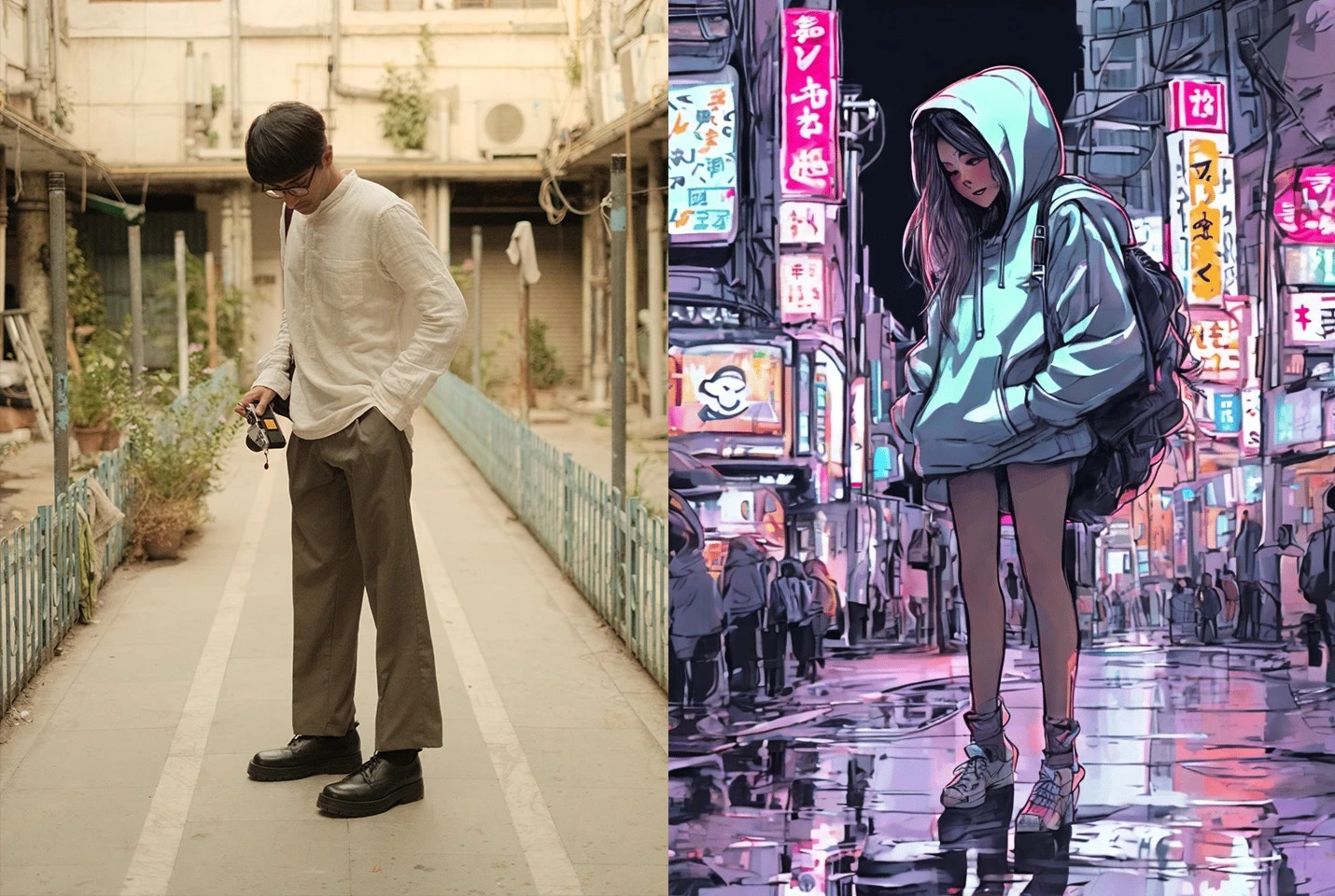
### Pose
The Pose type is for when your reference image includes characters or figures. It focuses on their positioning, serving as a guide for the creation of character-based imagery in your own work.
If you're aiming to generate images of a character in a specific stance or action, this is the ideal reference to use.
```txt Sketch of a Woman in Tokyo theme={null}
a sketch illustration of young woman, in Tokyo city, with a oversized hoodie, long hair, full body, character design, light pencil and soft ink, colors neon, brushstrokes, illustrations concept art book-style
```
Reference image by [Nati Melnychuk](https://unsplash.com/@natinati?utm_source=unsplash\&utm_medium=referral\&utm_content=creditCopyText)
### Pose
The Pose type is for when your reference image includes characters or figures. It focuses on their positioning, serving as a guide for the creation of character-based imagery in your own work.
If you're aiming to generate images of a character in a specific stance or action, this is the ideal reference to use.
```txt Sketch of a Woman in Tokyo theme={null}
a sketch illustration of young woman, in Tokyo city, with a oversized hoodie, long hair, full body, character design, light pencil and soft ink, colors neon, brushstrokes, illustrations concept art book-style
```
 Reference image by [Ravi Sharma](https://unsplash.com/@ravinepz?utm_source=unsplash\&utm_medium=referral\&utm_content=creditCopyText)
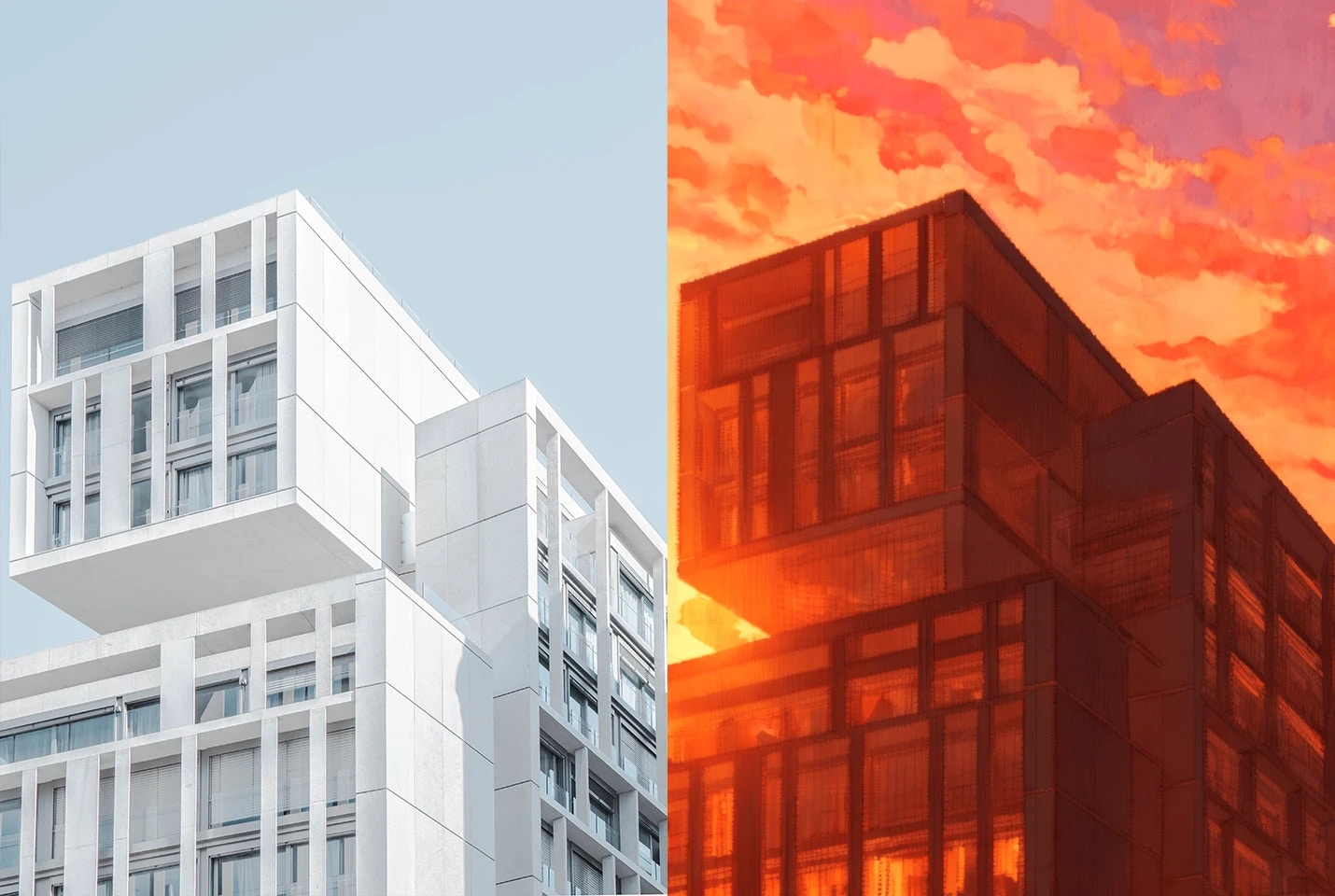
### Hard Edges
The Hard Edges reference type is your go-to for extracting strong, clear lines and distinct shapes from your reference image. This type is perfect for images featuring bold, detailed structures,
such as city skylines or intricate geometric designs. Use this reference when you want your generated image to reflect the detailed composition of your reference.
```txt Sunset Anime High Rise theme={null}
an illustration of a high rise building, 90s anime, manga, sunset colors, golden lighting, calm, serene
```
Reference image by [Ravi Sharma](https://unsplash.com/@ravinepz?utm_source=unsplash\&utm_medium=referral\&utm_content=creditCopyText)
### Hard Edges
The Hard Edges reference type is your go-to for extracting strong, clear lines and distinct shapes from your reference image. This type is perfect for images featuring bold, detailed structures,
such as city skylines or intricate geometric designs. Use this reference when you want your generated image to reflect the detailed composition of your reference.
```txt Sunset Anime High Rise theme={null}
an illustration of a high rise building, 90s anime, manga, sunset colors, golden lighting, calm, serene
```
 Reference image by [Joel Filipe](https://unsplash.com/@joelfilip?utm_source=unsplash\&utm_medium=referral\&utm_content=creditCopyText)
### Soft Edges
The Soft Edges reference type is for when your inspiration comes from an image with a more fluid, gentle composition. It's excellent for instances where the elements in your reference image
gracefully meld into one another, like an image capturing the motion of fabric in the wind, the delicate play of hair, the lively nature of a puppy, or the diffuse boundaries in a watercolor painting.
Use this reference when you wish your new creation to embody the broad strokes of your reference's composition, without being confined by rigid lines or precise forms.
```txt Space Meerkat theme={null}
meerkat looking off into the distance, nighttime, stars in the sky behind him, photorealistic, bokeh
```
Reference image by [Joel Filipe](https://unsplash.com/@joelfilip?utm_source=unsplash\&utm_medium=referral\&utm_content=creditCopyText)
### Soft Edges
The Soft Edges reference type is for when your inspiration comes from an image with a more fluid, gentle composition. It's excellent for instances where the elements in your reference image
gracefully meld into one another, like an image capturing the motion of fabric in the wind, the delicate play of hair, the lively nature of a puppy, or the diffuse boundaries in a watercolor painting.
Use this reference when you wish your new creation to embody the broad strokes of your reference's composition, without being confined by rigid lines or precise forms.
```txt Space Meerkat theme={null}
meerkat looking off into the distance, nighttime, stars in the sky behind him, photorealistic, bokeh
```
 Reference image by [Janis Ringli](https://unsplash.com/@janisringli?utm_source=unsplash\&utm_medium=referral\&utm_content=creditCopyText)
## Advanced Settings
***
{" "}
Reference image by [Janis Ringli](https://unsplash.com/@janisringli?utm_source=unsplash\&utm_medium=referral\&utm_content=creditCopyText)
## Advanced Settings
***
{" "}
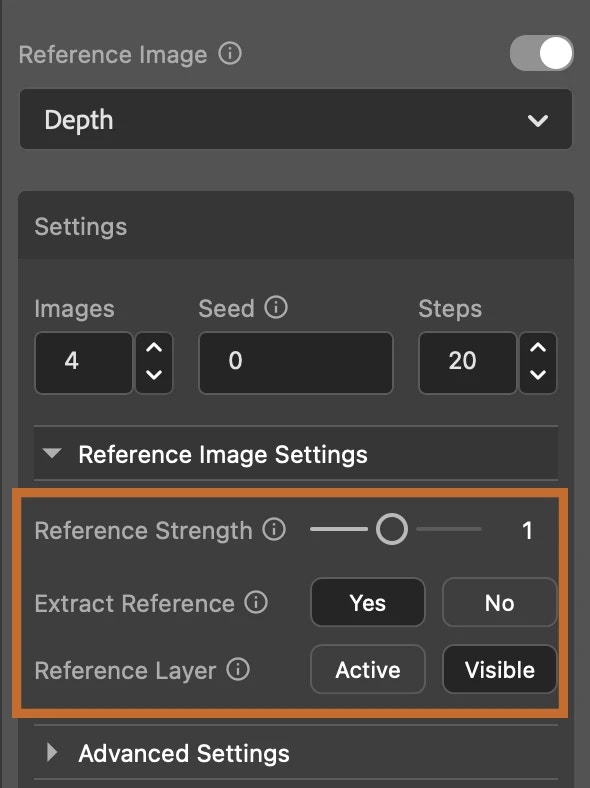 ### Reference Strength
This settings controls the influence your reference image has on the final artwork. A lower value (down to 0.1) means your reference will have less impact, while a higher value (up to 2.0)
gives your reference image significant influence on the composition. The default setting is balanced at 1.0.
### Extract Reference
This advanced setting lets experienced users provide their own prepared reference type, skipping the extraction process from the chosen reference image. For instance, you could input a depth map
generated by a separate 3D modeling tool and use it as a reference. By default, this setting is set to 'Yes', extracting the reference type from the given image. Selecting 'No' bypasses this extraction,
using the provided image content directly instead.
### Reference Layer
This setting determines the source of your reference content within Adobe Photoshop. When set to 'Active', the reference is derived from the currently selected content within the active layer. If set to
'Visible', it uses all visible content within the selected area, spanning across layers.
### Reference Strength
This settings controls the influence your reference image has on the final artwork. A lower value (down to 0.1) means your reference will have less impact, while a higher value (up to 2.0)
gives your reference image significant influence on the composition. The default setting is balanced at 1.0.
### Extract Reference
This advanced setting lets experienced users provide their own prepared reference type, skipping the extraction process from the chosen reference image. For instance, you could input a depth map
generated by a separate 3D modeling tool and use it as a reference. By default, this setting is set to 'Yes', extracting the reference type from the given image. Selecting 'No' bypasses this extraction,
using the provided image content directly instead.
### Reference Layer
This setting determines the source of your reference content within Adobe Photoshop. When set to 'Active', the reference is derived from the currently selected content within the active layer. If set to
'Visible', it uses all visible content within the selected area, spanning across layers.