> ## Documentation Index
> Fetch the complete documentation index at: https://docs.alpacaml.com/llms.txt
> Use this file to discover all available pages before exploring further.
# Imagine
> Quickly create images with a few simple words
Imagine allows you to create images using only a text prompt.
In the video below, we'll walk you through the steps to create your first images with Alpaca and provide you with
a few cool prompts to get you started.
Your Alpaca plugin may look a bit different than in the video as we are
constantly improving it.
The Imagine command is controlled entirely by your text box input, or
prompt. You can learn more about prompt writing by referring to our [Prompt
Guide](/guides/prompting).
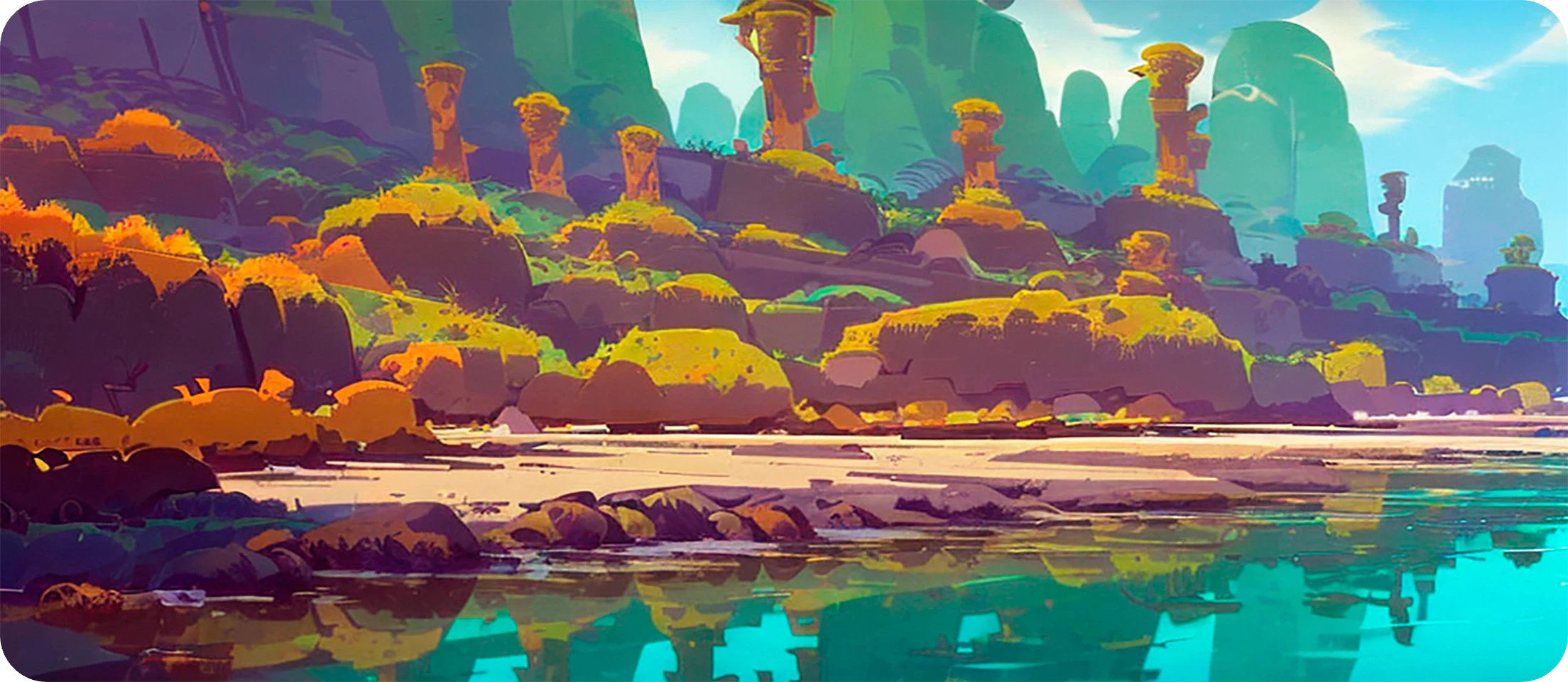
In this example we used the following prompt, which you can copy-paste into
your Alpaca textbox to experiment with. See what happens when you change parts
of the prompt!
```txt Prompt theme={null}
a digital painting of ancient crumbling ruins, cinematic game art, concept art, landscape perspective, jungle and vines, sunset, golden colors, 8k, trending on artstation
```
## Reference Image
You can also guide **Imagine** by leveraging existing images as a template, also known as a "reference" image.
We currently support 4 types of references:
* **Pose**: Extracts the specific pose of a character from the reference image to generate new images of characters in identical poses.
* **Depth**: Preserves the spatial arrangement or 'composition' of the reference image in the newly generated images.
* **Hard Edges**: Matches the sharp boundaries, lines or 'edges' found in the reference image in the generated images.
* **Soft Edges**: Similar to **Hard Edges** but with a bit more freedom allowed.
Check our guide [Using References to Guide Composition](/classic/references) to learn how to use references with Alpaca.
## Parameters
***
### Prompt
The `Prompt` box, located in the main section of the Alpaca panel, takes in a text prompt describing the subject matter,
style, composition, and characteristics of your desired image. You can also describe what you do not want to see in the output by clickling on `Exclude`.
You can learn more about writing prompts by checking our our [Prompt Guide](/guides/prompting).
### Images
Allows you to specify how many images you want Alpaca to generate from 1 to 5. The higher the number of images, the more credits the generation will cost, and the slowest it will be.
### Seed
The seed acts as a unique identifier, guiding the creation process of each generation.
If you retain the same seed with identical settings, the output will always be the same.
Retain the seed, while changing other parameters (e.g. altering the prompt) and you'll derive a distinct yet related creation.
For an element of unpredictability, set the seed to `0` and Alpaca will choose a random seed for each image, creating more variations
### Steps
Higher number of steps will lead to better quality, but also cost more credits and make the generation slower.
### Prompt Strength
The `Prompt Strength` slider controls the influence of the prompt — higher values of this parameter force the model to be more
attentive to the prompt. We can consider this to be a “rigid” vs “relaxed” interpretation of the prompt. 7 is a good balance.
### Tileable
You can check the `Tileable` box to create an image that can be seamlessly tiled i.e. placed beside itself (above, below, left, right)
without creating an obvious seam. This is useful for creating textures or patterned backgrounds.
 Imagine allows you to create images using only a text prompt.
In the video below, we'll walk you through the steps to create your first images with Alpaca and provide you with
a few cool prompts to get you started.
Imagine allows you to create images using only a text prompt.
In the video below, we'll walk you through the steps to create your first images with Alpaca and provide you with
a few cool prompts to get you started.